
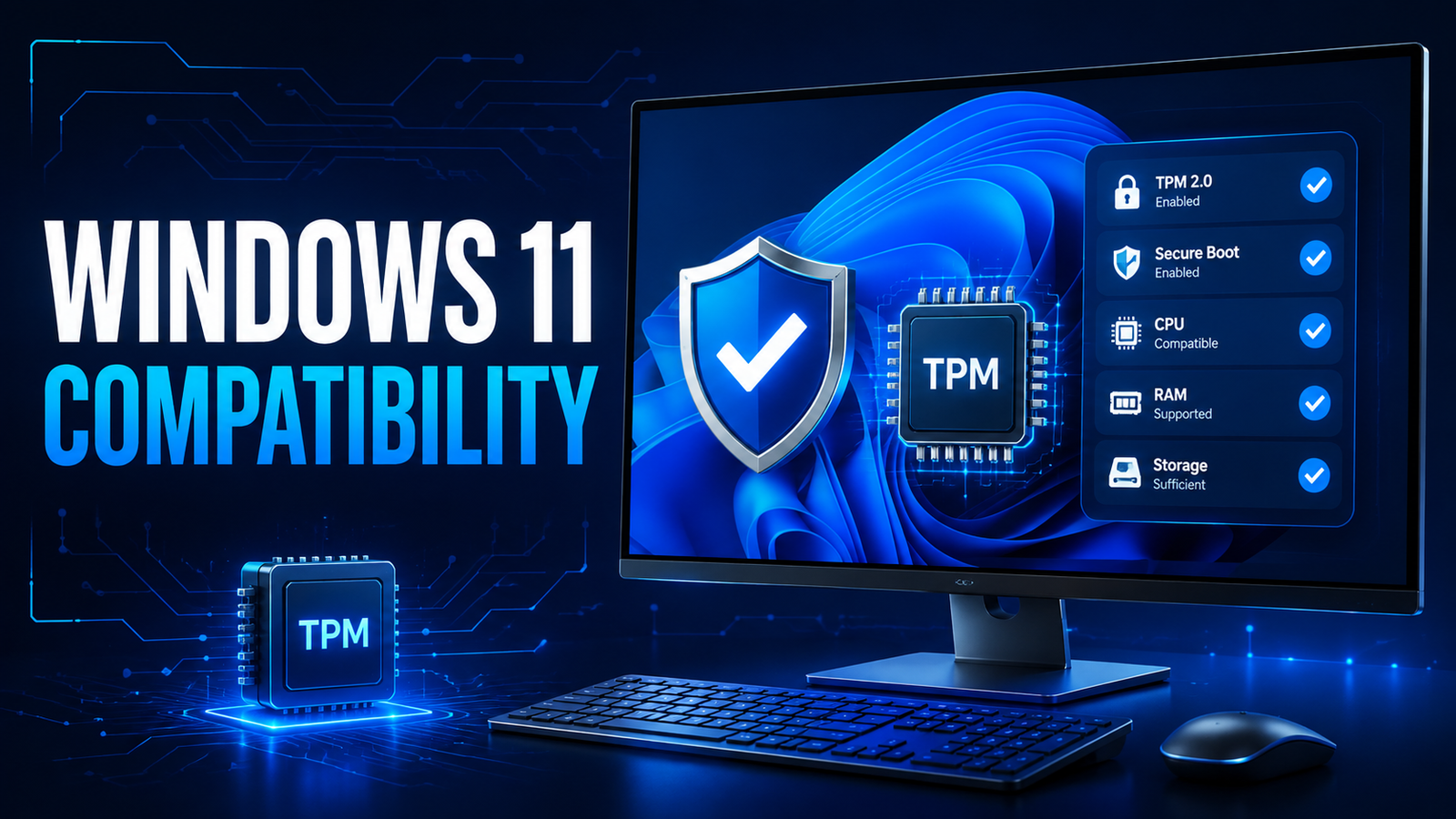
Before buying or installing Windows 11, confirm that the computer meets Microsoft’s official requirements. A compatibility check takes only a few minutes and helps prevent activation, driver and update problems later.
Windows 11 minimum requirements
Microsoft lists the following core requirements for Windows 11:
- Processor: 1 GHz or faster, with two or more cores, on a compatible 64-bit processor or system-on-chip.
- Memory: at least 4 GB of RAM.
- Storage: at least 64 GB.
- Firmware: UEFI with Secure Boot capability.
- Security: Trusted Platform Module (TPM) version 2.0.
- Graphics: DirectX 12-compatible graphics with a WDDM 2.0 driver.
- Display: HD 720p display larger than 9 inches diagonally.
Some Windows features need additional hardware. Always compare your device with Microsoft’s current Windows 11 system requirements.
How to check TPM 2.0
- Press Windows + R.
- Type tpm.msc and press Enter.
- Look for “The TPM is ready for use” and confirm that the specification version is 2.0.
If TPM is present but disabled, it may be available in the UEFI/BIOS under names such as Intel PTT, AMD fTPM or Security Device Support. Do not change firmware settings unless you understand the device configuration or have a backup.
How to check Secure Boot
- Press Windows + R, type msinfo32 and press Enter.
- Find BIOS Mode; it should normally show UEFI.
- Find Secure Boot State and confirm that it is enabled.
Use Microsoft PC Health Check
Microsoft’s PC Health Check app is the simplest way to identify compatibility issues. It checks the processor, TPM, Secure Boot, memory and storage together. Windows Update may also show whether an eligible Windows 10 device is ready for the upgrade.
Choose the right Windows 11 edition
Compatibility is only the first step. Windows 11 Home is designed for everyday personal use, while Pro adds business-oriented features such as BitLocker, Remote Desktop hosting and domain or Microsoft Entra ID join. Enterprise editions are intended for organizations with appropriate volume licensing. Read our Windows 11 Home vs Pro vs Enterprise guide before choosing.
Avoid unsupported installation shortcuts
Installing Windows 11 on unsupported hardware can affect reliability, updates and support. Kepbuy recommends using Microsoft-supported hardware and installation methods. See Microsoft’s official Windows 11 installation options.
Final checklist before purchase
- Confirm hardware compatibility.
- Back up important files.
- Choose the correct edition for your needs.
- Check that the device is running a genuine, supported Windows installation.
- Keep the product key and order information secure.
Browse our Windows 11 products or contact Kepbuy if you need help choosing an edition.