

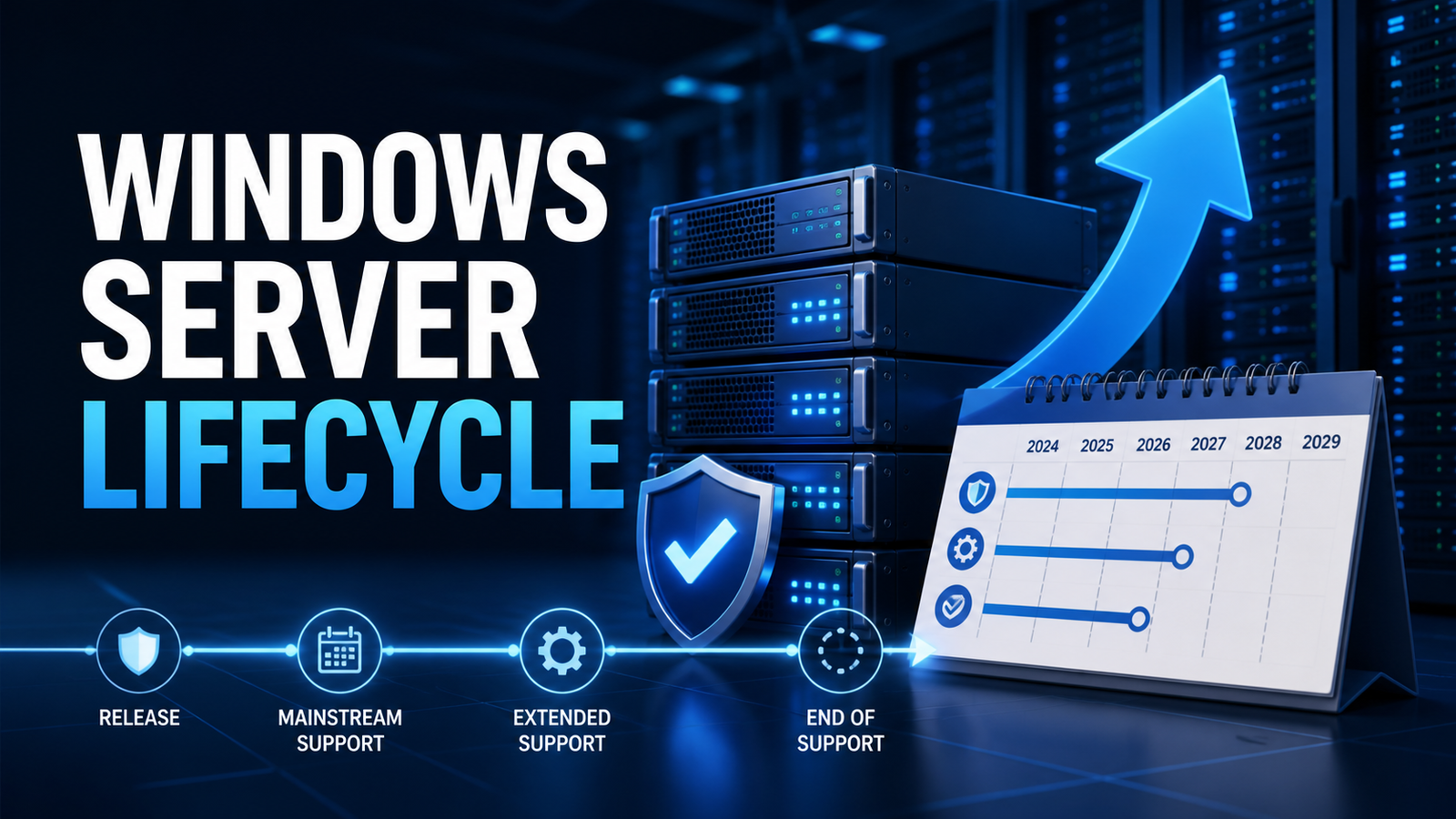
Windows Server upgrades should be planned around support dates, application compatibility, security requirements and licensing—not only the age of the server. This guide provides a practical framework for Windows Server 2016, 2019, 2022 and 2025 environments.
Why the support lifecycle matters
During mainstream support, Microsoft delivers a broader range of fixes and improvements. Extended support focuses primarily on security updates. When extended support ends, organizations may need a paid Extended Security Updates program where available, or they must accept greater operational and security risk.
Current lifecycle overview
Microsoft currently lists the following extended-support end dates for the Long-Term Servicing Channel releases:
- Windows Server 2016: 12 January 2027.
- Windows Server 2019: 9 January 2029.
- Windows Server 2022: 14 October 2031.
- Windows Server 2025: 14 November 2034.
Dates can change, and special editions or servicing channels may follow different policies. Verify every production decision against Microsoft’s official Windows Server release information and lifecycle pages.
When to start planning an upgrade
Do not wait until the final month of support. Begin discovery 12 to 18 months before the deadline for important workloads. Large estates, regulated systems and legacy applications may need more time.
- Inventory server roles, applications, databases and dependencies.
- Document hardware, firmware, drivers and backup procedures.
- Check vendor support for the target Windows Server version.
- Choose an in-place upgrade or side-by-side migration strategy.
- Test with representative workloads in a non-production environment.
- Prepare rollback, recovery and monitoring plans.
Standard or Datacenter?
Windows Server Standard is typically suited to physical or lightly virtualized environments. Datacenter is designed for highly virtualized and software-defined datacenter scenarios, with broader virtualization rights and additional capabilities. Microsoft publishes an official Windows Server editions comparison. Always match the edition and licensing channel to the intended environment.
What each generation offers
Windows Server 2016 and 2019
These versions remain common in established environments, but migration planning is increasingly important. Review legacy authentication, application dependencies and hardware compatibility early.
Windows Server 2022
Windows Server 2022 provides a mature platform with a longer remaining support window than 2016 or 2019. It is often a practical target where software vendors have not yet certified Windows Server 2025.
Windows Server 2025
Windows Server 2025 is the newest Long-Term Servicing Channel release in this comparison and provides the longest support runway. Adoption should still follow compatibility testing, backup validation and vendor certification.
Upgrade checklist
- Install all required updates before migration.
- Verify recent, restorable backups.
- Confirm Active Directory, database and application compatibility.
- Test network, storage, security and monitoring agents.
- Document licence edition, activation method and virtualisation rights.
- Schedule a maintenance window and communicate the rollback plan.
Choose supportability over shortcuts
A successful upgrade is measured by stability, security and recoverability. Avoid unsupported installation paths and never migrate critical workloads without tested backups. Browse our Windows Server products or contact Kepbuy if you need help identifying the appropriate edition.